
Settings
Customize your branding, team, and agency preferences.
The Settings area is your control center for customizing TravelBuilder Pro to match your agency’s brand and workflow. From uploading your logo to managing team members, all configuration options are organized in one place.
What you’ll learn:
- Configuring your agency information
- Customizing branding and appearance
- Setting up default templates and legal terms
- Managing team permissions
- Connecting external forms
- Understanding your subscription plan
Accessing Settings
Click Settings in the main sidebar to enter the Settings area.
You’ll see a dedicated sidebar with all configuration sections:
Agency: Basic organization informationBranding: Logo, colors, custom URLPublic Design: Default design for public trip pagesPayments: Default VAT rate, payment link, bank transfer coordinates, file-number formatLegal Terms: Standard policies for proposalsPermissions: Team role capabilitiesForms: External form integrationsYour Plan: Subscription and billingTeam: Team members and invitations
Agency Information
The Agency section stores your organization’s basic details.
Available Fields
Organization Name: Your agency’s official nameWebsite URL: Your agency’s website addressPhone Number: Contact phone for clientsDefault Currency: Currency for trip pricing (150+ currencies)Default Language: Default content language for new blocks and trips (out of up to 66 languages your agency can enable)Description: Brief description of your agencyAddress: Full business address
Why This Matters
Organization Nameappears on trip proposals and client communicationsDefault Currencysets the currency symbol for all new tripsDefault Languagedetermines the initial language when creating contentAddressappears on professional proposals and invoices
Click Save after making changes.
Branding
Customize how your agency appears to clients with your logo, colors, and custom URL.
Primary Color
- Click the color picker square
- Select your brand color or enter a hex code (e.g.
#3b82f6) - Preview updates instantly
Used on buttons, accents, and headers across client-facing pages.
Agency Logo
- Click
Upload Logo - Select an image file (JPG, PNG, SVG, or WebP)
- Preview your logo
- Use
ReplaceorRemoveif needed
Favicon
- Click
Upload Favicon - Select an icon file (ICO, PNG, or SVG)
- Preview how it appears in browser tabs
Recommended size: 32×32 px
Custom URL
Format: travelbuilderpro.com/share/your-agency-name
- Enter your desired URL
- Green checkmark = available
- Red X = already taken
Requirements:
- 3–30 characters
- Lowercase letters, numbers, hyphens only
- Must be unique
Public Design
Choose the default design applied to your client-facing trip proposals and public pages: the default cover image, the template, its layout, and the typography preset.
Default Trip Cover Image
- Click to select an image
- Choose from uploads or search Unsplash
- Used as the cover for every trip that hasn’t enabled
Use a custom cover image
Selecting a Template
- Browse available templates
- Click to select
- Preview shows branding applied
Choosing a Layout
Pick how the selected template arranges content on the public page: a single-column or two-column layout. A mini-schema previews each option.
Typography
Set the font pairing used across your public pages. Pick a preset from the Typography dropdown, Modern, Editorial, Minimal, or Classic. The selected preset is applied immediately to the live preview.
Map Theme
Pick the visual style used by the interactive trip map on your public proposals. Five themes are available (Light, Dark, Streets, Outdoors, and Satellite), each shown as a thumbnail preview.
Plan availability:
Starter. The map is not available; the picker opens an upgrade promptProfessional,LightandDarkthemesPremium, all five themes
Per-trip map visibility lives in the trip editor’s Map section: this setting only controls the theme.
Date Format
Choose how dates render on your day cards in the editor and on your client’s proposal (public page and PDF). Five styles are available:
Full:Wednesday, May 06, 2026(default)Long:May 06, 2026Medium:Wed 6 MayNumeric EU:06/05/2026Numeric US:05/06/2026
The two Numeric styles are language-independent; the other three follow the trip’s language on the public page (so a French trip prints French month names). The editor itself stays in English.
What Happens
- New trips use this design automatically
- Existing trips update to the new default
- Individual trips can still be customized
Payments
The Payments section holds the defaults every quote falls back to when it doesn’t override them: your VAT rate, your payment link, your bank transfer coordinates, and the format of your file (dossier) numbers.
VAT
Pick your agency’s default VAT rate from the dropdown, or leave it blank for No default rate. The rate is extracted from each trip’s tax-inclusive total (never added on top) and any trip can override it from the Pricing card in the editor.
Payment link
Paste a payment URL (Stripe, PayPal, or any other checkout link starting with https://) into the Payment link URL field. Every trip that doesn’t carry its own link falls back to this one, so changing it here updates every open quote at once.
Bank transfer
Fill in the Bank transfer card with Beneficiary, IBAN, BIC, and Bank name. Add an optional note in each of your agency’s public languages if you need to give clients per-language instructions. The switch on the card enables bank transfer for every trip that doesn’t override it; if the IBAN is empty, no coordinates are ever shown to the client.
Trip reference (file number)
The Trip reference card configures how every new trip’s file number is generated:
Prefix: a short string prepended to each reference (e.g.TBP-)Year, whether to include the year, and in which formatDigits: the minimum number of digits in the sequenceSeparator: the character between prefix, year, and sequenceReset yearly: restart numbering each JanuaryStarting number: the first sequence value for your very first trip
A live preview shows the next reference as you edit. Existing trips keep the reference they were issued.
Click Save after making changes.
Legal Terms
Set default legal sections for all trip proposals.
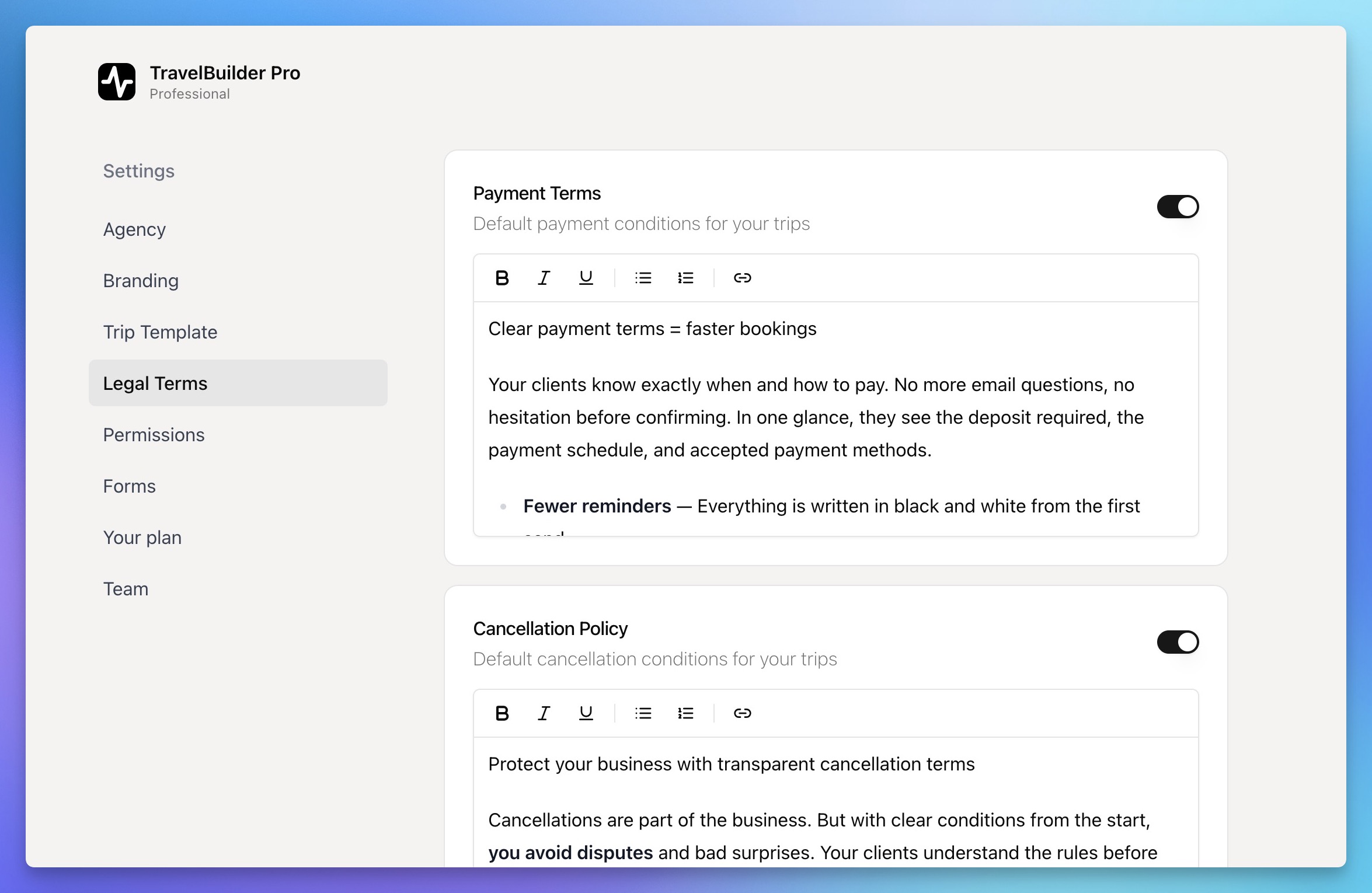
Define your legals terms as default for all your trips
Available Sections
Payment Terms, When and how clients payCancellation Policy: Booking cancellation rulesPassport & Visas: Travel document requirementsInsurance: Travel insurance information
Configuring Each Section
- Toggle section on/off
- Edit content with rich text editor
- Format with bold, italic, links, and lists
How It Works
- Enabled sections appear on all new trips
- Terms can still be edited per trip
- Disabled sections stay hidden unless enabled manually
Permissions
Control what team roles can do.
Roles
Agency Admin: full access including SettingsManager: Trips, contacts, workflowAgent: Trips and contacts
Configurable Permissions
Permissions are organized into four groups, each controlling a part of the trip editor. For every permission you can independently allow or deny Manager and Agent, Agency Admin always have full access.
Informations
Edit Trip Legal Terms: edit legal terms on individual tripsEnable Trip Map. Show the interactive map on tripsChange Trip Owner: reassign the agent shown on public trip pages (see Trip ownership)
Pricing
Edit Trip Currency: modify the currency on individual trips
Design
Edit Trip Cover Image: change the cover image on trips (enabled by default forManagerandAgent)Edit Trips Template: change template and layout on trips
Quote
Quote Tab Visibility: see cost breakdown and margins in the trip editor
When a permission is disabled for a role, the corresponding field or tab is hidden or read-only for users in that role.
Forms
Connect website forms to capture leads automatically.
How It Works
- Create a form on your website
- TravelBuilder Pro provides a webhook URL. Copy/paste it into your website
- Submissions on your website create contacts automatically in the CRM
Setting Up a Form
- Click
Add Form - Copy webhook URL
- Paste into your form settings
- Submit a test entry
Field Mapping
Map incoming fields to contact fields:
Email: email, contact_emailFirst Name: first_name, namePhone: phone, telephoneTrip Type: trip_type, interestDestination: destination, locationTravel Dates: dates, travel_datesBudget: budget, price_range
Auto-detection is provided, manual adjustments allowed.
Monitoring Submissions
For each form you can see:
- Total submission count
- Last submission date
- Form status (active / inactive)
Your Plan
Manage your subscription and billing.
Current Plan Overview
- Plan name and billing cycle
- Number of team members
- Cost per user
- Total monthly or yearly cost
Available Plans
Starter: Small agenciesProfessional: Growing agenciesPremium: Large agencies
Billing Options
Monthly: FlexibleYearly: Discounted (typically 2 months free)
Changing Your Plan
- Select a plan
- Review proration
- Confirm
- Billing updates automatically
Trial Period
- 7-day free trial on the plan you picked in the wizard
- Full feature access at that tier during the trial
- A payment method on file is required to start the trial (no free tier)
- Converts to the selected plan on day 8 unless cancelled from
Your Planor/dashboard/upgrade - Reminder badge shows remaining days
Team
Manage team members and access.
Team List Information
Each member shows:
Email: User emailRole:Agency Admin,Manager,AgentStatus:Active(green) orPending(yellow)Actions:Resend invite,Remove member
Inviting Team Members
- Click
Add Member - Enter email
- Select role
- Send invitation
After Inviting
- Invitation email sent
- User accepts
- Account created
- Status becomes
Active - Access granted
Managing Existing Members
Resend Invitation
- Menu (⋮) →
Resend Email
Change Invitation Email
For pending invitations only: useful if the address was wrong or the invite never arrived:
- Menu (⋮) →
Change email - Enter the new email and confirm
The previous invitation link is invalidated and a fresh invite is sent to the new address.
Remove Member
- Menu (⋮) →
Remove - A
Reassign datadialog opens listing every item the member owns (trips and other assigned items). Pick another active team member to receive ownership of all of them. This step is required to protect data integrity. - Confirm. Ownership is transferred and the member’s access is revoked.
Role Capabilities
Agency Admin: Settings, billing, team, all featuresManager: Trips, contacts, tasks, suppliers, libraryAgent: Trips and contacts (permission-based)
Per-Seat Billing
- Each member = one seat
- Adding increases cost
- Removing decreases cost (prorated)
- Header shows:
X users × $Y/user = $Z/month
Getting Help
If something is not working the way you expect, use the built-in feedback channel:
- Open the account menu (your avatar at the bottom of the sidebar, or the account card in the top right on
/subscribeand/dashboard/upgrade). - Click
Contact. - Pick a category:
BugorFeature request. - Write a short message and submit.
The message reaches the TravelBuilder Pro team directly and includes your account email so we can reply.